Current Deck Tab of Options Form
The Current Deck tab is itself divided into three more tabs:
Background Tab
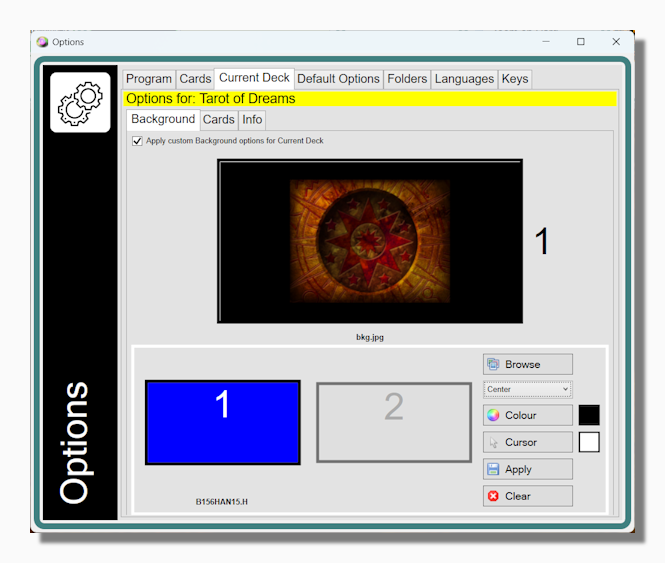
The Background tab shows the customization options for the active deck. If you have opened several deck forms in the course of the current session you can identify the active deck because its name appears on the side bar of the Options form itself ("Traditional Tarot" in the screen capture above). You can activate a different deck simply by clicking on it.
The options you can set include a background image (stretched, centred, tiled or maximized), a plain background of a colour you choose, and a custom mouse pointer which has to be a .cur or .ani file. These are the same options you can set in the Default Options tab of the Options form, but they only relate to the active deck, i.e. the one named in the side bar of the Options form, where they will override any default options you might have set.
Add or Update Shared Deck: This button lets you share the current deck on the Deck Exchange, or to update the deck if you have already shared it. When you share a deck it is quite common to share its background image and other customizations at the same time so if you change your background preferences here you might also want to update the image etc. for the copy of the deck you have shared.
Presence of a .bkg file: If you download a deck from the website or from the Deck Exchange it may contain an image file named bkg (for example bkg.gif, bkg.bmp, bkg.jpg or any of the other image file formats recognized by the program). In this case this file is taken to be the preferred background for the deck in question. This means that when you share a deck with other users you can assign a background image and they can view this at once without having to update their preferences on this form. If you clear the background settings when a bkg file has been used it is renamed as "_bkg" and ceases to apply as an override preference. A similar thing happens with animated cursor files if they are included with a shared deck.
Cards Tab
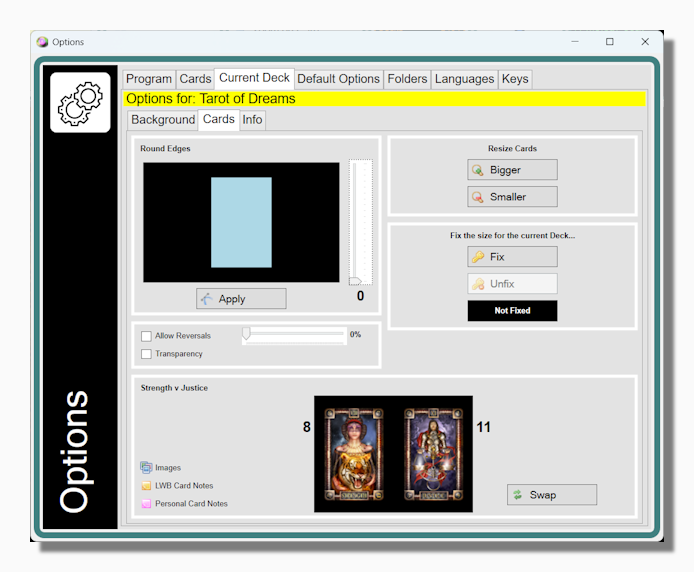
The Cards tab shows a number of other options that can be set on a deck by deck basis. In each case the deck level preferences, where they exist, outweigh the default ones.
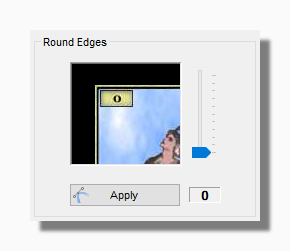
| A degree of edge rounding can be applied. This is especially useful where the deck is scanned from an original set of cards with rounded edges. |
|
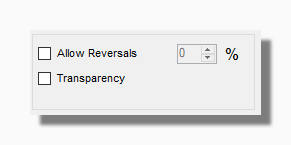
When a non-zero percentage of reversals is set then roughly this proportion of cards will be reversed at the moment of shuffling. Please take note that setting a percentage of reversals does not mean there will be always be that number of reversed cards in a deck. This is especially true if you switch between decks or change the percentage between shuffles without reordering the cards. For example if you start with a deck with 50% reversals and then you apply a shuffle with a percentage of reversals of 10%, then there is about a 90% probability that any given card will still be reversed after shuffling. This is because it will remain reversed from one shuffle to the next, unless by chance it is reversed again. In that case it will be returned to its upright position. If you want to ensure that all the cards are upright when switching decks you should do an ascending or descending sort.
Unchecking the Allow Reversals box has the same effect as setting the percentage to zero.
Transparency Checking this box means that the deck supports transparent areas as described in Using Transparency.
|
|
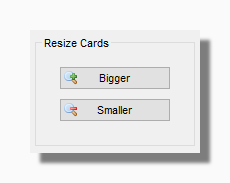
You can use this option to resize the selected deck form, which you can also do by using the + and - keys on your computer keyboard. Although this only resizes the active deck form, if you switch that deck form to a different deck then the general proportions will be retained by default. If you want to fix a certain deck so its always displayed at a certain pixel size you should use the buttons below.
|
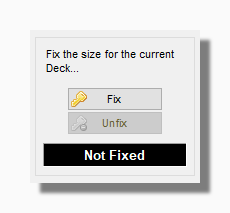
| These buttons fix or unfix the current selected pixel size of the current deck. Whenever that deck is shown, either opening it from scratch or by switching decks, its deck form will resize according to this setting. |
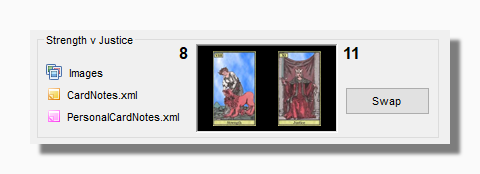
According to different Tarot traditions the order of the Strength and Justice cards are sometimes reversed. This tool allows you to swap around the card images, card names and associated notes for the Strength and Justice cards in the currently active deck to match your preferred way of working. The changes are permanent so you only have to do this once.
Info Tab
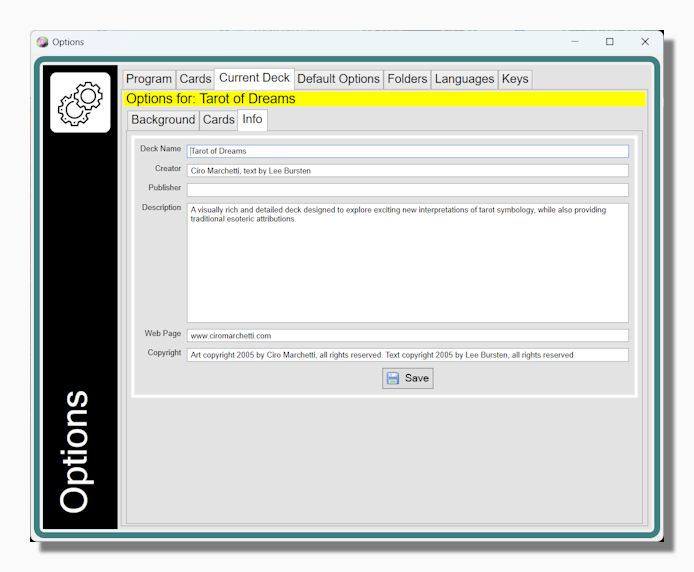
The information on the Info Tab corresponds to what is shown in the About Box with regard to the active deck. This information is contained in the PackInfo.xml file in the relevant folder in your Decks Folder.
Tip: When working with multiple decks bear in mind that the Current Deck tab refers to the Deck Form that is currently active and focused, so you can select a different deck to edit its settings just by clicking on it. It is not necessary to close and re-open the Options form.